

JPG vs WebP: How Much Smaller, and When to Convert
By Akmal Ali · Published · Updated · 4 min read
Convert your JPGs to WebP at about 80–85% quality, in a browser that can create WebP, such as Chrome, Edge or Firefox on a computer. Google measured lossy WebP files 25–34% smaller than JPGs of comparable quality, which makes pages load faster. Keep the JPG for upload forms, email and printing.
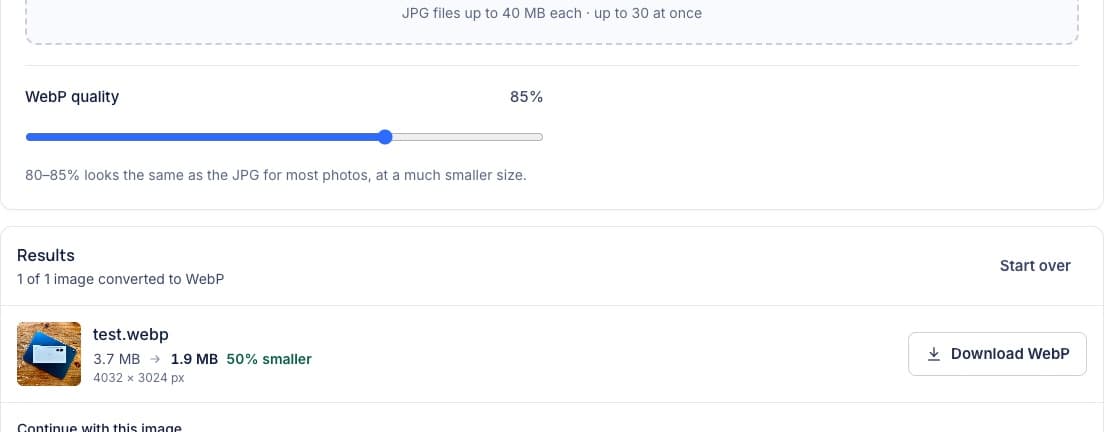
Images are usually the heaviest part of a web page. Our 3.7 MB test photo from an iPhone came out at 1.86 MB as WebP, with the same pixels and no visible difference. But WebP doesn’t always win, and knowing when it doesn’t saves you from making a site slower.
What is WebP?
WebP is an image format developed by Google for the web. It can compress lossily, like JPG, or losslessly, like PNG, and it supports transparency in both modes. According to Google’s WebP documentation, lossy WebP files are 25–34% smaller than JPGs of comparable quality. Every current major browser can display it.
JPG vs WebP
| JPG | WebP | |
|---|---|---|
| File size for a photo | Small | Usually smaller at the same visual quality |
| Transparency | No | Yes |
| Web browsers | All | All current major browsers |
| Upload forms, email, older software | Almost always accepted | Often not accepted |
| Best for | Sharing, uploading, printing | Images on your own website |
Why does WebP help website performance?
Fewer bytes per image means pages download faster, especially on mobile connections, and the largest image on the screen appears sooner. That image is often what Google’s Largest Contentful Paint measures, one of the Core Web Vitals. Smaller images also use less bandwidth for you and your visitors.
Format is only part of it. An image shown 800 pixels wide but stored at 4000 pixels wastes far more bytes than the choice of format. Resize it to the largest size it’s displayed at, or up to twice that for sharp high-density screens, then convert.
Converting
Open the JPG to WebP converter in Chrome, Edge or Firefox on a computer or an Android phone. Safari, and most browsers on iPhone and iPad, can display WebP but can’t create it. The default quality of 85% suits most photos, and the size before and after is shown for each file.
JPG to WebP
Batch-convert up to 30 JPGs to WebP at the quality you choose, and see the saving for every file.
Choosing a quality
- 80–85%: a good default for photos on a website. Hard to tell from the original.
- 70–75%: for thumbnails and background images, where fine detail matters less.
- 90% and above: when detail matters, such as product close-ups or photography portfolios.
Why does WebP sometimes come out bigger?
We took the 48.1 KB JPG that Compress Image to 50KB made from the same test photo (615 × 462 pixels, saved at 72%) and converted it at the default 85%. The WebP was 53.6 KB: 12% larger. The JPG had already thrown away most of its detail, and asking WebP for a higher quality than the JPG was saved at only adds data back.
So convert from the original photo, not from a copy that was compressed for an upload form, and if a file grows, lower the WebP quality to around the JPG’s own or keep the JPG.
Using WebP on your website
Most site builders and content management systems accept WebP uploads; WordPress has supported them since version 5.8. If you write HTML yourself, a plain <img> works in every current browser:
<img src="/images/team.webp" width="1200" height="800"
     alt="The team at the spring meetup" loading="lazy">
Setting width and height lets the browser reserve the space before the image loads, so the page doesn’t jump. Leave out loading="lazy" for the main image at the top of the page, so it starts loading straight away. To serve a JPG to any older software that can’t show WebP, use a <picture> element with the JPG as the fallback:
<picture>
  <source srcset="/images/team.webp" type="image/webp">
  <img src="/images/team.jpg" width="1200" height="800"
       alt="The team at the spring meetup" loading="lazy">
</picture>
When should you keep JPG?
- Upload forms and portals that list JPG and PNG only.
- Email attachments and files for people using older software.
- Printing, where print shops and photo labs expect JPG or TIFF.
- Your originals. Keep the JPG as the master copy and treat WebP as the version for the web.
For images that need transparency, such as logos, convert from PNG with PNG to WebP. And if you receive a WebP that won’t open somewhere, convert it back with WebP to JPG. For a side-by-side comparison of all three formats, read JPG vs PNG vs WebP.
Frequently Asked Questions
Is WebP better than JPG?
For images on a website, usually yes: WebP files are typically smaller at the same visual quality, and it supports transparency. For sharing, uploading and printing, JPG is safer because it is accepted everywhere.
Does converting JPG to WebP lose quality?
The image is compressed again, so a little detail is lost, but at 80–85% it isn’t visible for most photos. Convert from the best original you have, and convert once.
Is WebP good for SEO?
Google Search supports WebP images, and smaller images help pages load faster, which improves the experience for visitors. The format itself doesn’t earn a ranking bonus.
Can Windows and Mac open WebP files?
Current versions of Windows and macOS open WebP in their built-in viewers, and every current major browser shows it. Older systems and some editing programs may not, so keep a JPG copy.