

How to Resize an Image Without Distorting It
By Akmal Ali · Published · Updated · 9 min read
An image is distorted when its width and height are scaled by different amounts, which stretches or squashes everything in it. To resize without distortion, change one side and let the other follow the original aspect ratio: a 4000 × 3000 photo at 1200 pixels wide must be 900 high. When the new shape has to differ, crop first and resize afterwards.
A stretched face, a squashed logo, a landscape that looks oddly tall: distortion is the most common thing that goes wrong when an image is resized, and it is also the easiest to avoid. It comes down to one rule about proportions and one checkbox that applies it for you.
What does “distorted” mean for an image?
An image is distorted when its shape has been changed: the width was scaled by one amount and the height by another, so everything in the picture is stretched in one direction and squashed in the other. Circles become ovals, people look thinner or wider than they are, and text leans or spreads. Distortion is not the same as blur (soft, missing detail) or pixelation (visible blocks). A distorted image can be perfectly sharp and still look wrong, because its proportions are wrong.
Original, 4:3 (1200 × 900 px).
Stretched to 1:1 (900 × 900 px): the width was squeezed, the height was not.
Resized with the ratio kept (900 × 675 px): the same shape with fewer pixels.
Why do images become distorted?
Every case comes down to the same thing: the new width and height do not have the same proportions as the original. That happens in a few typical ways.
- Both sides were typed in by hand. A form asks for 600 × 600 pixels, the photo is 4000 × 3000, and both numbers are entered with the aspect ratio unlocked. The resizer does exactly what it was told and squeezes the width.
- A placeholder forced the shape. Slide templates, website themes and ad banners have fixed boxes. When the software is set to “stretch to fill” rather than “crop to fill”, any photo with a different shape is distorted the moment it is dropped in.
- The web page sets both a width and a height. If an
<img>is given a width and a height that do not match the file, the browser stretches it to those pixels unless the page usesobject-fit. The file is fine; the page is wrong. - A print option scaled the sides separately. “Fit to page” settings that do not keep proportions scale the long and short sides by different amounts, so the print is distorted while the file is not.
Width, height and aspect ratio
The aspect ratio is the relationship between an image’s width and its height, written as two numbers: 4000 × 3000 pixels is 4:3, 1920 × 1080 is 16:9 and 1080 × 1080 is 1:1. Divide the width by the height and you get the same information as one number: 4:3 is 1.33, 16:9 is 1.78. Two images have the same shape when that number is the same, whatever their pixel size.
A resize keeps the shape only when both sides are multiplied by the same factor. So once you know the new width, the new height is fixed:
new height = new width × original height ÷ original width
For a 4000 × 3000 photo at 1200 pixels wide, that is 1200 × 3000 ÷ 4000 = 900. When the answer is not a whole number (a 1366 × 768 screenshot at 1000 wide gives 562.2), round it: half a pixel is invisible. The aspect ratio calculator does the division and shows when it has rounded.
Why does locking the aspect ratio matter?
The “Keep aspect ratio” option in a resizer does that calculation every time you type a number. Change the width and the height follows; change the height and the width follows. With it on, there is no way to enter a pair of values that distorts the image. With it off, the tool accepts any pair, and nothing warns you that 600 × 600 will squash a 4:3 photo.
Resizing by percentage is safe for the same reason: 50% applies to both sides at once, so a 4000 × 3000 photo becomes 2000 × 1500, the same shape with a quarter of the pixels.
How to resize an image without distorting it
- Find out the size you have. Open the photo in the image dimensions checker, or read the figures the resizer shows when you choose a file: for example 4000 × 3000 px, 4:3.
- Decide which side matters. A website usually needs a width (1600 pixels wide, say); a portrait in a narrow column needs a height. Pick one number, not two.
- Enter that one number with the ratio locked. In the image resizer, choose Pixels, keep “Keep aspect ratio” ticked and type the width or the height. The other field updates by itself. If you would rather scale the whole image, choose Percentage instead.
- Check the result figures. The result shows the new width × height. Divide them: 1600 × 1200 gives 1.33, the same as 4000 ÷ 3000, so the shape is intact.
- Choose the format and quality, then download. Keep the original format for most photos; JPG at 85–90% is fine for the web. The resizer writes a new file, so your original is untouched.
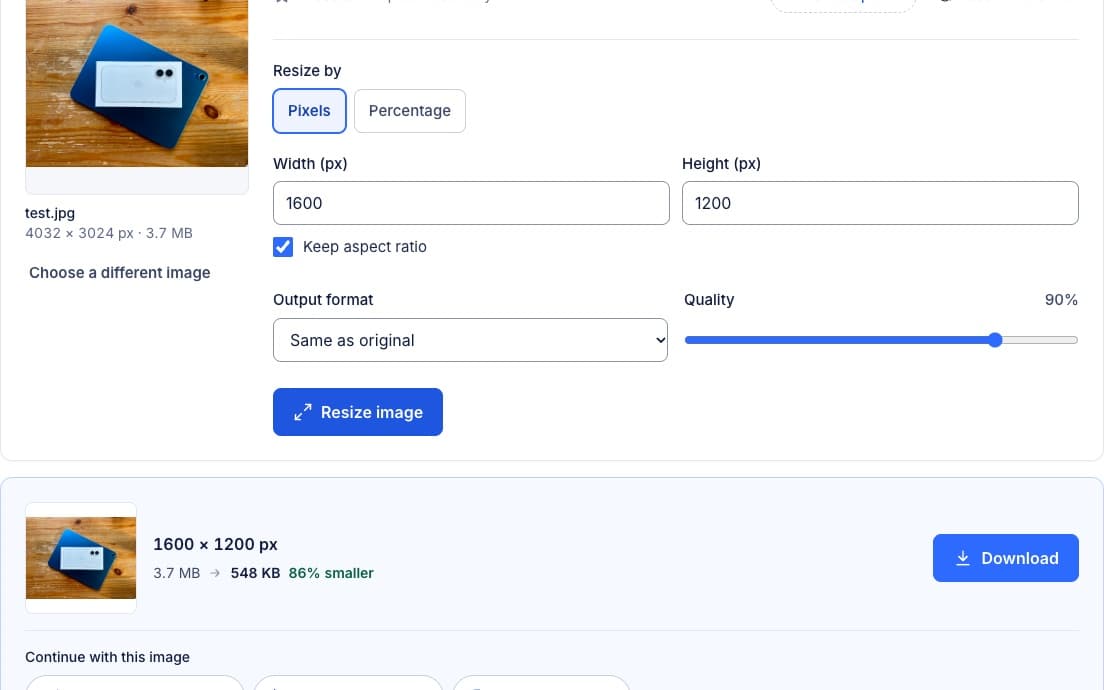
Image Resizer
Enter a width, a height or a percentage, with the aspect ratio locked by default, and download the result in the same format or as JPG, PNG or WebP.
Examples
| You have | You need | What to do | Result |
|---|---|---|---|
| 4000 × 3000 (4:3) | 1200 px wide for a blog post | Resize, ratio locked, width 1200 | 1200 × 900 |
| 4000 × 3000 (4:3) | 1080 × 1080 profile picture | Crop to 1:1 first, then resize | 1080 × 1080, nothing squashed |
| 6000 × 4000 (3:2) | 1920 × 1080 slide background | Crop to 16:9 (6000 × 3375), then resize | 1920 × 1080 |
| 1200 × 1600 (3:4) | 600 px tall for a web column | Resize, ratio locked, height 600 | 450 × 600 |
| 1920 × 1080 (16:9) | 3840 × 2160 wallpaper | Enlarging keeps the shape but adds no detail | 3840 × 2160, softer |
The second and third rows are the important ones. The required size has a different shape from the photo, and no amount of careful resizing can turn a 4:3 picture into a square without either squashing it or removing part of it.
Common resizing mistakes
- Typing both numbers with the lock off. The classic cause. If you must enter two numbers, make sure they are in the same proportion as the original, or crop first.
- Treating a required shape as a size. “600 × 600” is a square. If the photo is not square, resizing alone cannot get there; something has to be cut.
- Enlarging small images. Going from 800 to 2400 pixels wide keeps the shape but invents the pixels in between, so the image looks soft. The resizer tells you when a result is larger than the original.
- Resizing before cropping. Shrink a photo to 600 pixels wide and then crop it to its middle half, and you are left with an image 300 pixels wide. Crop at full size first, then resize.
- Saving a JPG again and again. Each save loses a little quality. Resize from the original file, not from last week’s resized copy.
- Fixing proportions by eye. Dragging a corner until a face “looks about right” rarely lands on the true ratio. Use the numbers: the original width and height tell you exactly what the new ones must be.
Can a distorted image be fixed?
Sometimes. If you still have the original, use it; that is always the better fix. If you do not, but you know the original shape, resize the distorted copy back with the lock off: a 4:3 photo that was squashed into 900 × 900 becomes 900 × 675 again, and circles are circles once more. Detail that was squeezed out is only estimated when it is stretched back, so the result is a little softer than the original was, but it is far better than leaving faces narrow.
When cropping is better than resizing
Crop when the problem is the shape, not the size. A profile picture, a Story, a 16:9 banner and a 35 × 45 mm passport photo all need a particular shape, and the honest way to get there is to decide which part of the photo to keep. Crop with the image cropper using its 1:1, 4:3, 3:2 or 16:9 preset, then resize the cropped image to the exact pixels. Cropping also helps when the subject is small in the frame: cutting away empty background does more for a photo than any resize can. The table below compares the two, and image aspect ratios lists which ratio each destination needs.
Cropping vs resizing at a glance
Original, 4:3 (4000 × 3000 px). The dashed square is the crop frame.
Cropped to 1:1 (3000 × 3000 px): the kept area is unchanged, everything outside the frame is gone.
Resized to 50% (2000 × 1500 px): everything is kept, everything is smaller.
| Cropping | Resizing | |
|---|---|---|
| Purpose | Change what is in the frame | Change how large the image is |
| Changes dimensions | Yes, by removing pixels | Yes, by scaling pixels |
| Removes image areas | Yes | No |
| Changes aspect ratio | Usually, by choice | No, when the ratio is locked |
| Can cause distortion | No | Yes, if the sides are scaled separately |
| Detail of what is kept | Unchanged | Reduced when smaller, invented when larger |
| Affects file size | Smaller, in proportion to the area removed | Smaller when reduced, larger when enlarged |
| Use it for | A new shape, tighter framing, removing clutter | Fitting a width or height, fewer megapixels, thumbnails |
A resizing workflow that avoids distortion
- Start from the original, full-size file, not a copy from a chat app or a web page.
- If the destination has a different shape, crop to that ratio first.
- Resize to the required width or height with the aspect ratio locked.
- If a file-size limit in KB applies, compress last, after the pixels are right; compressing without losing quality explains the settings.
- Check the final width, height and shape before you upload.
Frequently Asked Questions
Why does my photo look stretched on one website but fine everywhere else?
The page is stretching it, not the file: its layout gives the image a box with a different shape and no rule to crop or fit, so the browser scales the two sides separately. Check the file in the image dimensions checker; if its ratio is right, crop a copy to the box’s shape for that site, or ask whoever runs it to fix the layout.
Does resizing by percentage ever distort an image?
No. One percentage applies to the width and the height at the same time, so the shape stays exactly the same. The only way to distort an image in a resizer is to enter a width and a height that don’t match the original’s proportions with the aspect ratio unlocked.
Is a one-pixel rounding difference a distortion?
No. Pixels are whole numbers, so 1000 × 562.2 has to become 1000 × 562, which changes the ratio by less than 0.1%, far too little to see. The distortion people notice comes from much larger mismatches, such as fitting a 4:3 photo into a square, which squeezes the width by 25%.
Can I change an image’s shape without cropping anything?
Only by padding it: keep the whole picture and fill the rest of the new shape with a colour or a blurred copy, the way a widescreen film is shown on a 4:3 screen with bars. Most editors call this “fit” rather than “fill”. It avoids both distortion and cropping, at the cost of visible bars.