

How to Combine Photos Into One PDF on Your Phone
By Akmal Ali · Published · Updated · 4 min read
Open Image to PDF in your phone’s browser, add the photos, put them in order and tap Create PDF. Each photo becomes one page; if the PDF must stay under a size limit, compress the photos first and leave some room.
Forms and offices often want several documents as a single PDF: the front and back of an ID card, the pages of a certificate, or a set of receipts. You can make one on your phone in the browser, without installing an app.
Combine the photos
- Open Image to PDF in your phone’s browser.
- Tap to choose images and select all the photos you need. You can add more later.
- Put them in order with the up and down buttons. Each photo becomes one page, in that order.
- Pick the page size: A4 or Letter for documents you might print, or a page that fits each image.
- Tap Create PDF, then download it.
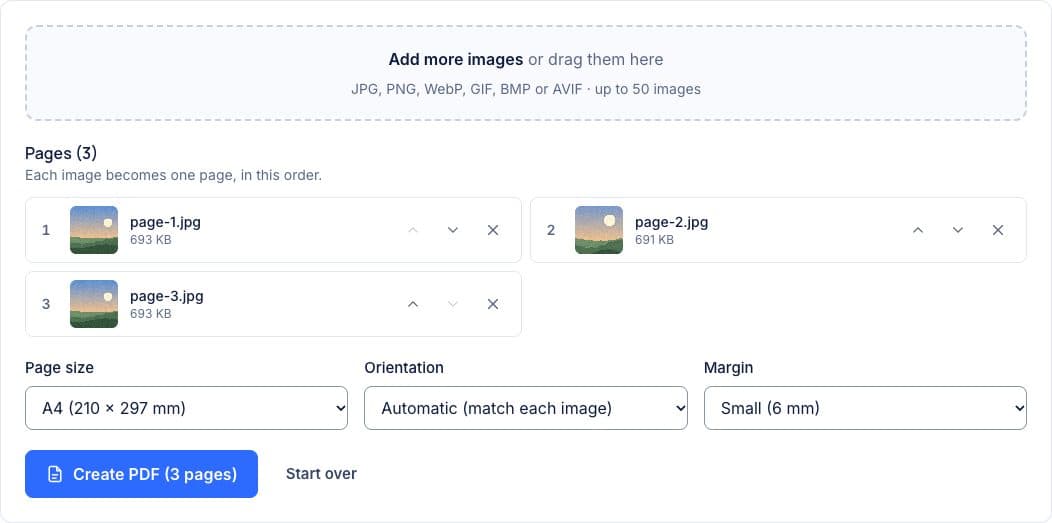
Image to PDF
Up to 50 images, one per page, in the order you set, on A4, Letter or pages that fit each image.
Without a website
- iPhone: select the photos in Photos, tap Share › Print, then spread two fingers on the page preview. On many iOS versions this opens the pages as a PDF that you can share or save to Files.
- Android: if your gallery app offers Print, choose Save as PDF as the printer. Some apps print only one photo at a time.
Both work well for a few photos, but you have less control over page size, margins and the order of the pages.
Take photos that read well as a PDF
- Shoot from straight above, with the whole page in frame and no fingers over the edges.
- Use daylight and avoid the flash, which leaves a bright glare on glossy paper and plastic cards.
- Put the page on a dark, plain surface, so its edges are easy to see.
- Crop in your photo app first if the background takes up a lot of the picture.
How do you keep the PDF under an upload limit?
Each page of the PDF holds the photo at up to about 3,500 pixels on its longest side, enough to print sharply on A4, saved at 90% JPG quality. Full-size phone photos therefore make a large file: in our test, three 12-megapixel iPhone photos of 3.7 MB each made a 6.7 MB PDF.
If a portal limits the size, shrink the photos first with the image compressor, using Target size, then combine the smaller copies. Leave some room: because every page is saved again at 90%, the PDF comes out larger than the photos you add. Four copies of that photo compressed to 197 KB (1277 × 958 pixels) made a PDF of 1,008,850 bytes, just over a 1 MB limit. For a 1 MB limit and four pages, aim for about 150 KB per photo, then check the PDF’s size before uploading.
Common problems
- iPhone photos won’t open. HEIC files that were copied to a computer or saved in Files can’t be added. Convert them first with one of the HEIC to JPG methods, or set Settings › Camera › Formats to “Most Compatible” before taking them.
- Pages are in the wrong order. Photos are added in the order your phone hands them over. Fix the order with the up and down buttons before creating the PDF.
- A page is sideways. The tool follows the rotation your camera recorded. Rotate the photo in your gallery app, save it, and add it again.
Frequently Asked Questions
Why is my PDF bigger than the photos I added?
Every page is saved again as a 90% JPG, so photos that were compressed further than that get a little bigger. In our test, four photos of 197 KB each made a PDF of just over 1 MB.
Can I add an existing PDF to the photos?
No, Image to PDF takes images only, such as JPG, PNG and WebP. To merge an existing PDF with the new one, use a PDF editor.
Can I make the pages black and white?
Yes, before you add them: convert each photo with Grayscale Image, then add the grey copies to the PDF in the order you want.